Creating a video used to mean arranging cameras, lighting, actors, recording equipment, and editing software. AI has not removed the need for good ideas or careful editing, but it has made the production process much more accessible.
Today, a creator can start with a written concept, generate visual clips, add narration and sound, and assemble a finished video without a traditional studio. The difficult part is no longer simply gaining access to the tools. It is knowing how to guide them toward a consistent and useful result.
This guide explains a practical workflow for creating AI videos from text, from the first idea to the final export.
Quick Answer
To create an AI video from text:
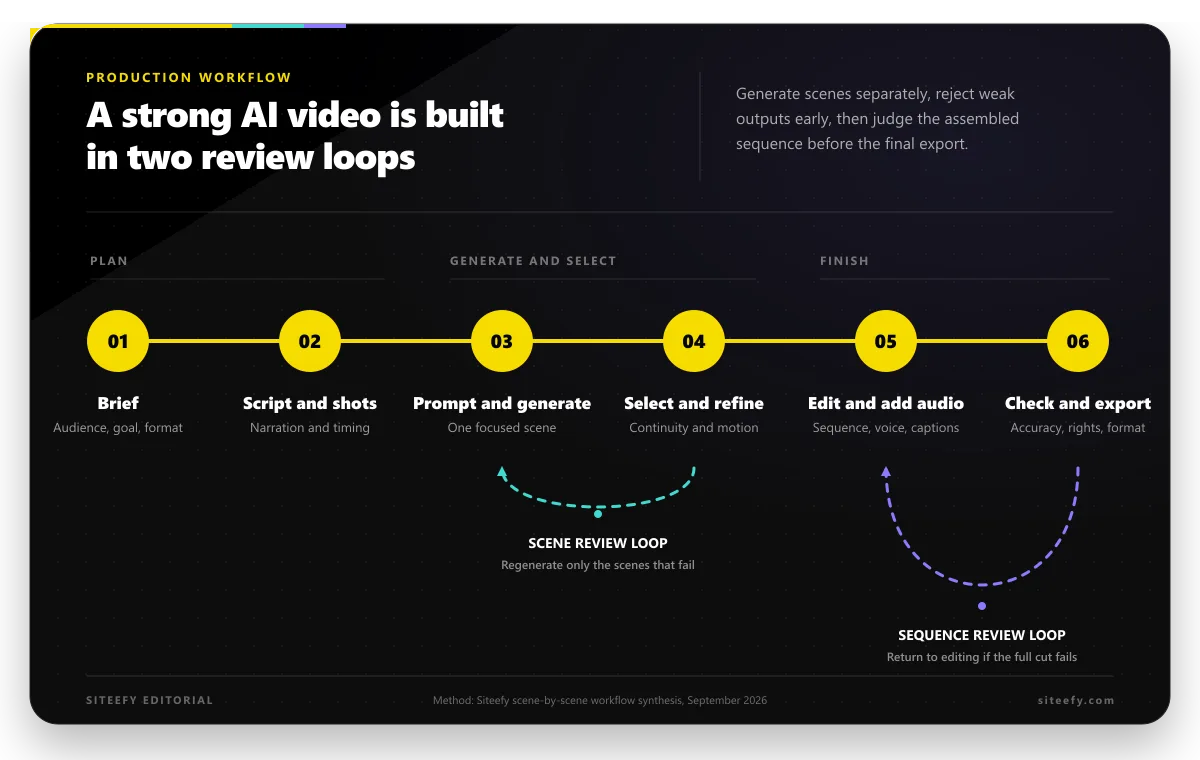
- Define the audience, goal, and format.
- Turn the idea into a short script and shot list.
- Choose a generation model that fits the type of video.
- Write a detailed prompt for each scene.
- Generate short clips and refine them individually.
- Add voiceover, music, and sound effects.
- Edit the clips into a clear sequence.
- Add captions and complete a final quality review.
- Confirm usage rights and any required disclosure before publishing.
The strongest results usually come from treating AI as part of a production workflow, not as a one-click replacement for planning and editing.
1. Define the Video Before Opening a Tool
Start by deciding what the video needs to accomplish. A product demonstration, social media advertisement, educational explainer, and cinematic concept all require different structures.
Write down four basic details:
| Question | Example |
|---|---|
| Who is the audience? | Small business owners exploring automation |
| What should they learn or do? | Understand one feature and visit a landing page |
| Where will the video appear? | YouTube, a landing page, or a vertical social feed |
| How long should it be? | 15 seconds, 30 seconds, or 2 minutes |
These choices affect the aspect ratio, pacing, visual style, amount of narration, and number of scenes you need.
For example, a 15-second vertical advertisement should communicate one idea quickly. A two-minute tutorial can introduce a problem, demonstrate several steps, and end with a clear takeaway.
If the video will support a campaign, Siteefy's guide to using AI for video marketing can help you decide where generated video fits and where a human-led approach may be more appropriate.
2. Create a Script and Shot List
Do not ask an AI tool to make the entire video from a broad one-sentence idea. Break the concept into manageable scenes first.
A simple script can follow this structure:
- Hook: Give the viewer a reason to keep watching.
- Problem: Show the situation or need.
- Solution: Demonstrate the main idea, product, or process.
- Evidence: Show a result, benefit, or example.
- Next step: Tell the viewer what to do.
Next, turn the script into a shot list. Each shot should describe what appears on screen, how the camera moves, how long the scene lasts, and what the viewer hears.
| Scene | Visual | Audio | Duration |
|---|---|---|---|
| 1 | Close-up of an overwhelmed creator at a desk | Short opening line | 3 seconds |
| 2 | Blank storyboard turns into a sequence of scenes | Narration explains the idea | 5 seconds |
| 3 | Finished video plays on a phone and laptop | Music rises | 4 seconds |
| 4 | Simple call-to-action screen | Final narration line | 3 seconds |
Generating short scenes separately usually gives you more control than trying to generate a complete long video in one pass.
3. Choose the Right AI Video Tool
AI video platforms do not all solve the same problem. Some focus on cinematic text-to-video generation, while others specialize in presenters, product videos, editing, localization, or social media templates.
Before choosing a platform, compare the broader range of AI video generation tools. If your workflow begins with a written script rather than a source image, narrow the comparison to text-to-video generation tools.
Look for the features your project actually needs:
- Text-to-video and image-to-video generation
- Control over aspect ratio and resolution
- Reference images or frames for visual consistency
- Voiceover and voice cloning
- Lip-sync support
- Music and sound-effect generation
- Captions and multilingual output
- Editing and export options
- Commercial-use rights that match your project
Using several disconnected tools can work, but it also creates more exporting, file management, and synchronization. An integrated ai video generator such as ElevenLabs can combine video models with voices, music, sound effects, lip-sync, captions, and editing in one creative workspace.
 ElevenLabs
ElevenLabs currently provides access to multiple video models rather than limiting every project to one model. Its official Image & Video documentation describes support for text prompts, visual references, iterative refinement, upscaling, lip-sync, and export to Studio. The same documentation says that Image & Video is in beta, video generation requires a paid plan, and some models or upload features are restricted in the United States. Confirm the current model and regional availability before building a production workflow around a specific feature.
The best tool is not necessarily the one with the longest feature list. It is the one that supports your desired format while giving you enough control to maintain quality and consistency.
4. Write a Prompt for Each Scene
A useful video prompt describes more than the subject. It gives the model information about the action, environment, camera, lighting, visual style, and timing.
You can use this prompt formula:
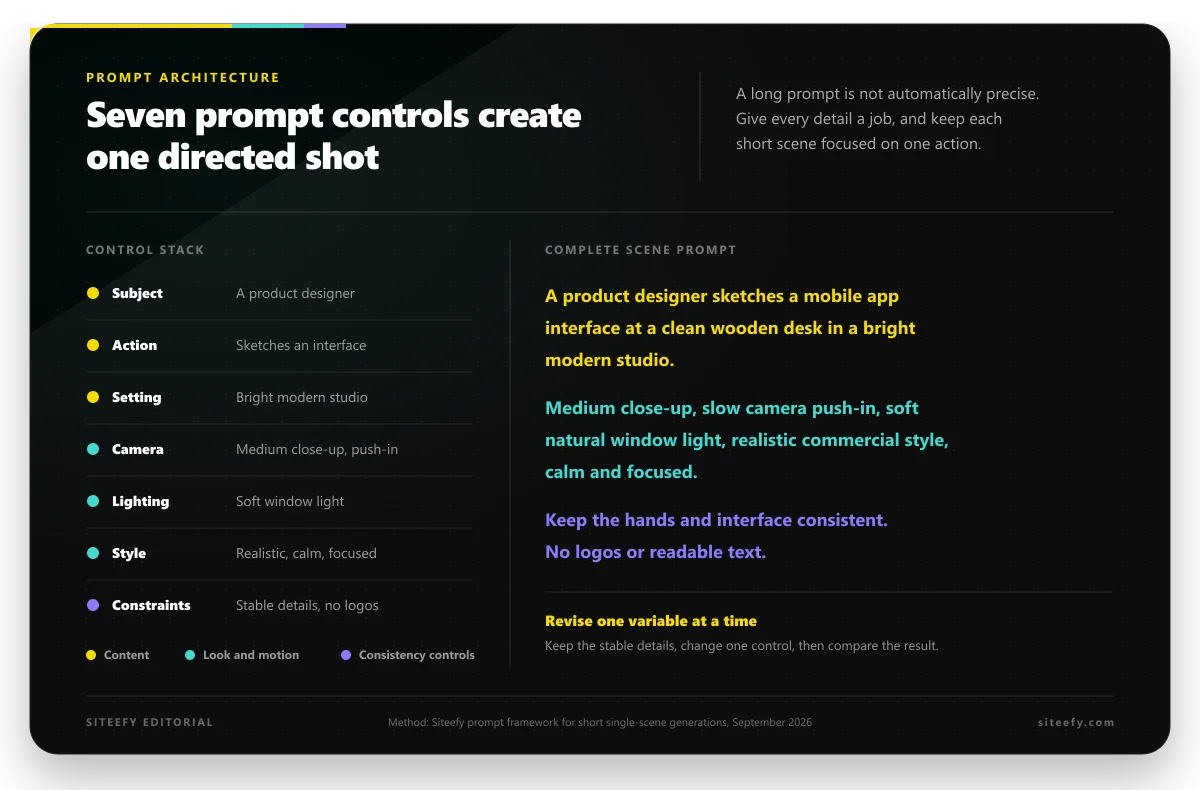
Subject + action + setting + camera movement + composition + lighting + visual style + mood + constraints
For example:
A product designer sketches a mobile app interface at a clean wooden desk in a bright modern studio. Medium close-up, slow camera push-in, soft daylight from a window, realistic commercial style, calm and focused mood. Keep the hands and interface consistent. No logos or readable text.
Specific instructions help reduce ambiguity. Useful details include:
- Subject: Who or what should appear?
- Action: What should happen during the shot?
- Setting: Where does the scene take place?
- Camera: Is the shot static, handheld, tracking, aerial, or close-up?
- Lighting: Should it feel bright, soft, dramatic, warm, or cool?
- Style: Should it look realistic, animated, cinematic, editorial, or illustrative?
- Constraints: What should the model avoid changing or adding?
Avoid packing several unrelated actions into one short clip. A simpler scene is easier to control and easier to edit.
5. Generate Short Clips and Iterate
The first generation should be treated as a draft. Review each clip for:
- Subject and character consistency
- Believable motion
- Accurate hands, faces, and objects
- Stable backgrounds
- Appropriate camera movement
- Correct aspect ratio
- Space for captions or on-screen graphics
- A clear beginning and ending for editing
If a clip is close but not usable, change one or two prompt elements at a time. Large prompt rewrites make it difficult to understand what improved or weakened the result.
Reference images, start frames, end frames, or previous clips can help preserve a character, product, environment, or color palette across scenes. ElevenLabs' reference and asset guide explains that supported reference types and combinations differ by model. Check the selected model before building the entire storyboard around one feature.
When a still image is the creative starting point, compare dedicated image-to-video tools instead of assuming that every text-to-video model offers the same reference controls.
6. Add Voiceover, Music, and Sound Effects
Audio often determines whether an AI video feels like a finished piece or a collection of generated clips.
Voiceover
Choose a voice that fits the audience and purpose. A tutorial usually benefits from a clear and neutral delivery, while an advertisement may need more energy. Test difficult names, numbers, and technical terms before generating the full narration.
Keep sentences short enough to match the available screen time. If the narration feels rushed, shorten the copy instead of forcing the voice to speak unnaturally fast.
Music
Music should support the pace without competing with the narration. Use a quieter arrangement when the video contains important spoken information. Make sure you have the necessary commercial rights for the track and intended distribution channel. Creative Commons explains that its licenses allow different kinds of reuse, and that every CC license requires attribution. A license marked NonCommercial or NoDerivatives may not fit a paid campaign or an edited soundtrack, so check the exact Creative Commons license before using the asset.
Sound Effects
Small details such as footsteps, interface clicks, traffic, room tone, wind, or a transition sound can make generated visuals feel more grounded. Sound effects work best when they match visible actions and do not overwhelm the main message.
7. Use Lip-Sync and Captions Carefully
Lip-sync can help when a presenter or character needs to speak on screen, but it should be reviewed closely. Check the mouth movement, timing, facial expressions, and transitions around the spoken section.
Captions are useful even when a platform can generate them automatically. They make spoken and meaningful non-speech audio available to viewers who cannot hear it. The nonprofit World Wide Web Consortium provides a practical guide to making audio and video media accessible, including planning, captions, transcripts, and descriptions of important visual information.
Before publishing, review captions for:
- Incorrect names or technical terms
- Poor line breaks
- Text that covers faces or key visuals
- Inconsistent punctuation
- Timing that is too fast to read
If the video will be localized, review each language separately. A translated sentence can be longer or shorter than the original, which may affect timing and scene length.
8. Edit the Final Sequence
Place the strongest version of each clip on a timeline and review the complete video rather than judging scenes only in isolation.
Trim slow openings and endings. Match cuts to movement or audio when possible. Maintain consistent color, volume, typography, and caption style across the project.
Export settings should match the destination:
| Destination | Common aspect ratio | Typical use |
|---|---|---|
| YouTube or website | 16:9 | Tutorials, explainers, product videos |
| Instagram or Facebook feed | 1:1 or 4:5 | Feed posts and advertisements |
| TikTok, Reels, or Shorts | 9:16 | Full-screen vertical video |
The platform's current requirements should always take priority, especially for file size, duration, and codec.
9. Confirm Rights, Consent, and Disclosure
AI generation does not remove the need to clear the materials that enter the workflow. Confirm that you have permission to use every uploaded image, voice, music track, logo, and likeness. Keep a record of each asset's source, license, and any required attribution so the final editor does not need to reconstruct that information later.
Get explicit permission before cloning a person's voice or creating a realistic likeness of them. For a sponsored endorsement aimed at U.S. consumers, the U.S. Federal Trade Commission says the relationship should be disclosed clearly in the video, not only in the description. Its social media disclosure guidance also recommends making the disclosure easy to notice and understand.
Where the production tool supports it, preserve provenance metadata during export. The open C2PA Content Credentials standard can record information about an asset's origin, edits, and use of AI in a tamper-evident structure. Content Credentials do not prove that every claim in a video is true, but they can help viewers inspect where the media came from and how it changed.
Common AI Video Mistakes
Trying to Generate Too Much at Once
Long prompts with several scenes and actions often produce inconsistent results. Generate short, focused shots and assemble them later.
Ignoring Continuity
A character's clothes, a product's shape, or a room's layout may change between clips. Use reference material and repeat important visual details in each relevant prompt.
Relying on Visuals Without Strong Audio
Generated footage can look impressive but still feel empty. Narration, music, ambient sound, and effects help create structure and emotional direction.
Publishing the First Output
AI generation is an iterative process. Review details at normal speed and frame by frame when necessary.
Forgetting Rights, Consent, and Disclosure
Confirm the tool's commercial-use terms, obtain permission for identifiable people and voices, and make sure uploaded images, music, and brand assets are yours to use. Check the rules that apply to the audience and distribution channel before publishing synthetic media.
Final Quality Checklist
Before publishing, confirm that:
- The video has one clear purpose.
- The opening communicates value quickly.
- Every scene supports the script.
- Characters, products, and environments remain consistent.
- Voiceover timing feels comfortable.
- Music and effects do not overpower speech.
- Captions are accurate and readable.
- The final aspect ratio matches the destination.
- No unintended text, logos, or visual artifacts remain.
- You have the necessary rights and consent for every asset and likeness.
- Any required sponsorship or synthetic-media disclosure is visible.
- Provenance metadata is preserved when the tool and channel support it.
Final Thoughts
AI makes video production faster and more accessible, but a useful result still depends on planning, direction, and review. The most reliable workflow is to define the goal, break the idea into scenes, generate short clips, and then combine them with carefully edited audio and captions.
Start with a small project, test several versions, and keep the process focused on the viewer rather than the technology. A clear story and deliberate editing will usually matter more than any single model or feature.