TTSMaker

TTSMaker

Convert text to natural-sounding speech in multiple languages with customizable voice styles and controls.

Freemium·No reviews yet

Overview

TTSMaker is an AI-powered text-to-speech platform that supports numerous languages and offers high-quality, natural-sounding voices. It provides users with options to customize voice tone, speed, and pitch, making it suitable for content creators, educators, businesses, and language learners. The tool allows quick conversion and easy download of audio files, with both free and subscription-based plans available.

Pricing Model
freemium
Last Updated
2025-12-02

Key Features

1

Multilingual Voices

Supports a wide range of languages with multiple voice options to cater to global audiences and projects.

2

Voice Style Options

Offers different tones such as casual, formal, and friendly to match various content styles.

3

Voice Speed & Pitch Control

Allows users to fine-tune the speed and pitch of the voice output for a personalized listening experience.

4

Downloadable Audio Files

Generates audio files that can be downloaded and used offline for presentations, podcasts, or other uses.

5

Background Music Addition

Enables adding background music to the generated speech audio for enhanced production quality.

6

Audio Format Selection

Users can select from various audio file formats to suit their specific needs.

7

Voice Preview

Preview voices before conversion to choose the best fit for the content style.

8

Customizable Pauses

Allows users to insert pauses between paragraphs to improve the natural flow of audiobook narration.

Use Cases

#1

Content Creators

Convert scripts into audio for podcasts, videos, and narrations to enhance engagement.

#2

Educators

Create spoken content for e-learning modules to make educational materials more accessible.

#3

Businesses

Produce professional voiceovers for presentations, tutorials, and product demos.

#4

Language Learners

Practice pronunciation by listening to native-sounding speech in various languages.

#5

Audiobook Makers

Quickly transform text into audio with customizable pauses for audiobook production.

How to Use

1

Visit TTSMaker Website

Go to TTSMaker.com to access the text-to-speech platform.

2

Input Text

Enter your text directly or upload a text file for conversion.

3

Select Voice and Customize

Choose your preferred language, voice, and adjust speed and pitch settings as desired.

4

Convert and Download

Click the 'Convert' button to generate the audio, then download or share the file.

Pricing

Pricing details are gathered from the official TTSMaker website and are provided for reference only. Always confirm the latest information directly with the vendor.

PlanPriceHighlights
Free Version$0

Basic voice options

  • Limited usage
  • Access to multiple languages
Lite Plan$12.99

Expanded voice options

  • Increased usage limits
  • Basic customization features
Pro Plan$29.99

Full voice and language access

  • Advanced customization
  • Higher usage limits
Studio Plan$140

All Pro features

  • Priority support
  • Enterprise-level usage and integrations
Found a change in pricing? We welcome corrections. Reach out so we can keep this listing accurate.

Pros & Cons

Pros

  • High-quality, natural-sounding voices in many languages.
  • Multiple voice tones and styles for diverse content needs.
  • Easy and quick text-to-speech conversion with direct download.
  • Customizable voice speed and pitch for tailored audio output.
  • Free version available with basic features to try before subscribing.

Cons

  • Advanced features require paid subscription plans.
  • Limited customization options in the free version.
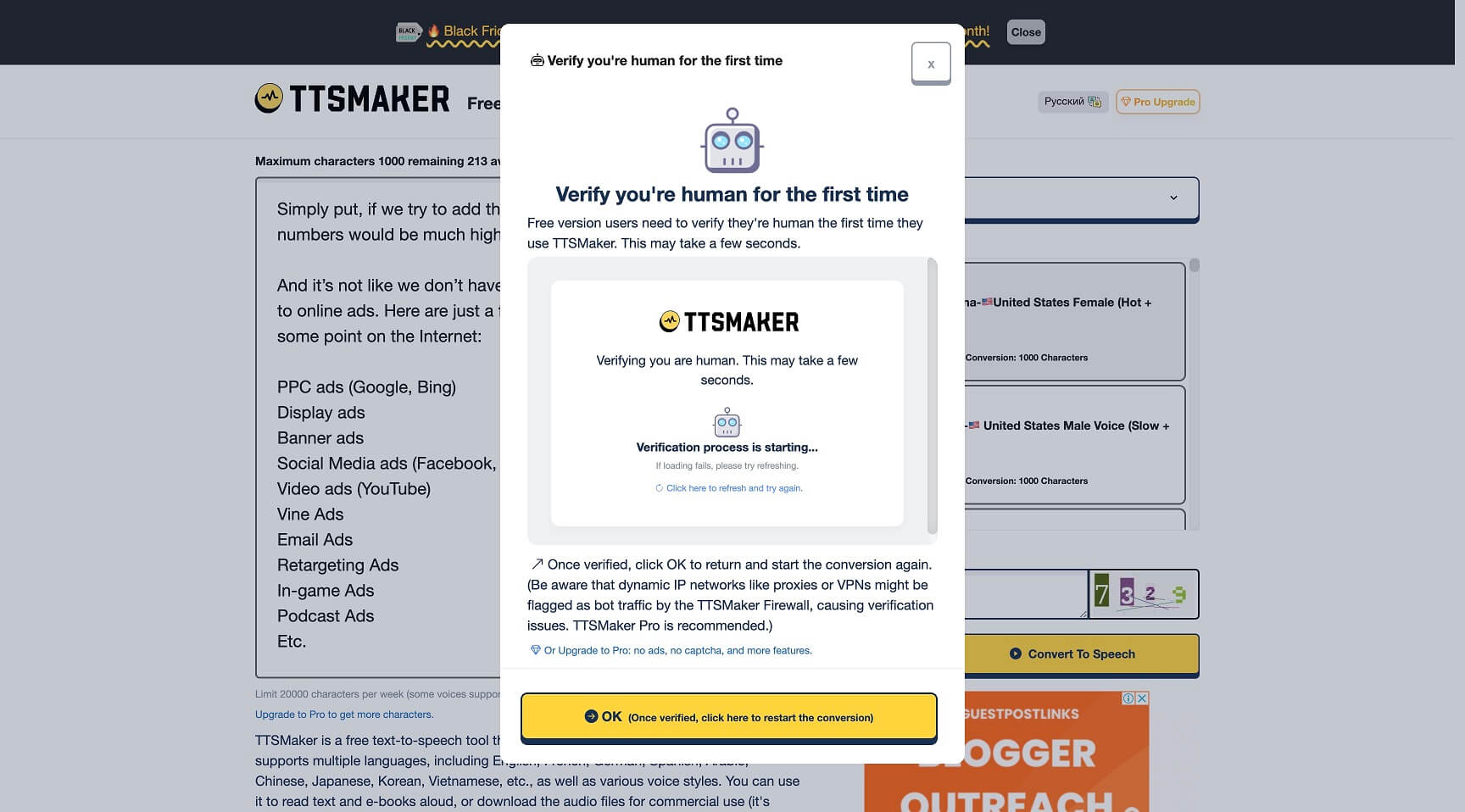
  • Initial use requires solving a captcha, which can be inconvenient.
OT

Our Test

Hands-on notes from our editorial team.

✅ Our Test

⬇️ Visit the Website and Paste Your Text

For the test, we took text right from the first paragraph of our blog article-How Many Ads Do We See a Day?. We visited the website and there was no sign-up required to perform the tool.

⬇️Choose the Voice and Generate Audio

After copypasting our text to the box, we selected one of the available voices in the menu on the right side. Then we clicked the “Convert to Speech” button, and AI generated audio, which we could download right from there. Remember, if you are generating for the first time, there will be a captcha pass required.

⬇️ There Is Another Button Too

Before generating, there was another button available. By clicking the “More Settings” button, you can add background music, change voice speed, and adjust voice volume for your audio.There you can also select an audio file format to generate and some other advanced settings

⬇️Funny Moment

We switched voice to French talking but forgot to switch text, and the tool generated English talking audio with a strong French accent.

Frequently Asked Questions

Ratings & reviews

Ratings & reviews

No reviews yet. Be the first to share your experience.
Share your experience

Sign in to rate this tool and help the community understand how it fits into their workflow.

Community reviews (0)

No reviews yet. Be the first to share your experience.