⚡ Quick Answer
1. Remove Comments From Individual Pages/Posts:
- Navigate to Posts > All Posts or Pages > All Pages
- Select the specific post/page
- Click the gear icon to access settings
- Uncheck Allow comments in the Discussion section, then click Update
2. Remove Comments for New Posts:
- Go to Settings > Discussion
- Uncheck the option that allows people to submit comments on new posts.
- Scroll down and click Save Changes.
3. Remove Comments From All Posts:
- Go to Posts > All Posts
- Select all posts using the checkbox next to the title
- Choose Edit in the bulk actions menu
- Click Apply, then choose Do not allow for comments
- Hit Update
4. Disable Comments Using a Plugin:
- Install the Disable Comments plugin from Plugins > Add New
- Activate the plugin
- Go to Settings > Disable Comments
- Select Everywhere or specific post types
- Click Save Changes
For the detailed information, please read below.
⭕ For a better WordPress editing experience, check out our selection of the best WYSIWYG WordPress editors ➡️
How To Remove “Leave a Reply” From Individual Pages/Posts in WordPress
In this section, we are going to talk about how to remove “Leave a Reply” in WordPress without CSS.
Follow these steps:
➡️ Step 1: Go to ‘Posts > All Posts’ from your WordPress admin sidebar to access blog posts or ‘Pages > All Pages’ to access pages.
Select the post or page you want to edit.
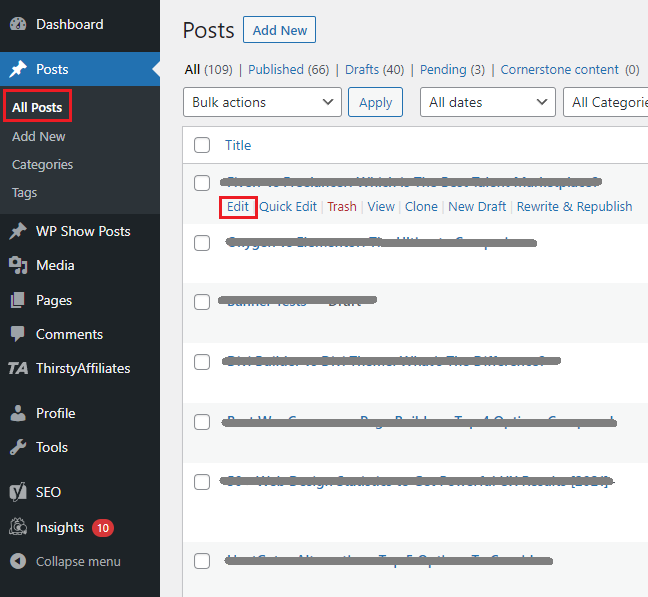
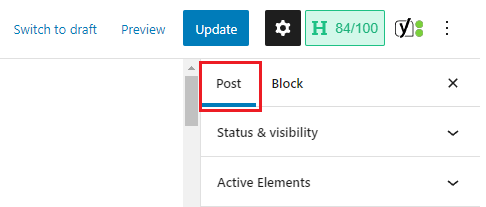
➡️ Step 2. Click on the ‘gear’ icon at the top right to access post/page settings.

➡️ Step 3: Select the ‘Post’ option from the settings pane.
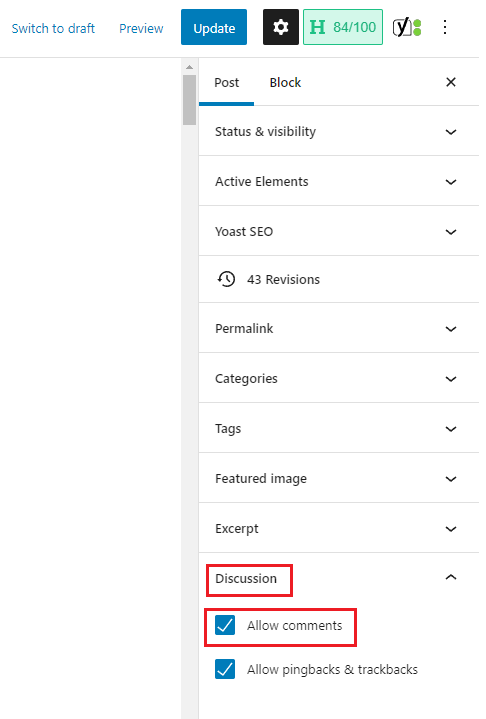
➡️ Step 4: Scroll down and access the ‘Discussion’ dropdown. From there, uncheck the option which says ‘Allow comments’.
➡️ Step 5: Click on ‘Update’ in the top-right.
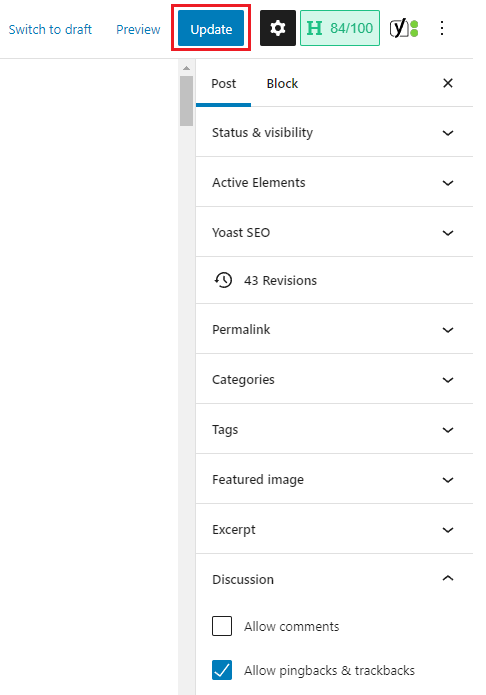
Now, you will no longer see the comment box on that particular post/page.
How To Remove “Leave a Reply” For New Posts in WordPress
If you want comments to be enabled for your older posts, but disabled for the posts, you publish next, you can use a built-in option available in WordPress.
Here’s how to use that:
➡️ Step 1: Go to ‘Settings > Discussion’ from your WordPress admin sidebar.

➡️ Step 2: Besides the ‘Default post settings’ text, uncheck the option that says ‘Allow people to submit comments on new posts’.

➡️ Step 3: Scroll down and click on ‘Save Changes’.

How To Remove “Leave a Reply” From All Posts in WordPress
If you have a lot of posts and don’t want to manually disable comments for each post, then WordPress provides a quick, and easy way to disable comments on all posts/pages.
Here’s a quick guide about how to remove “Leave a Reply” from all posts in WordPress:
➡️ Step 1: Go to ‘Posts > All Posts’ from your WordPress sidebar.

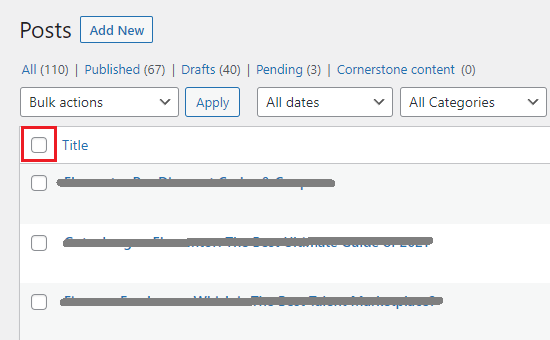
➡️ Step 2: Click on the checkbox next to the ‘Title’ text to select all posts.
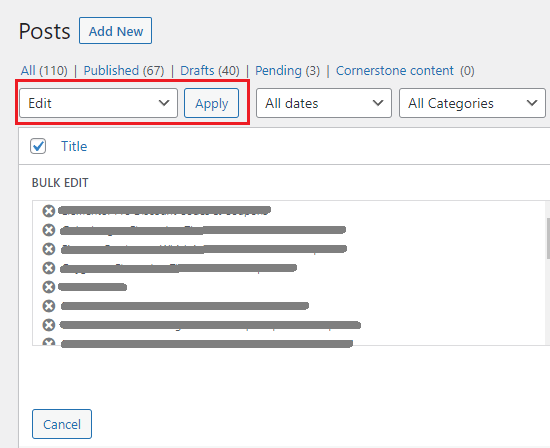
➡️ Step 3: In the top drop-down menu, select “Edit” and click “Apply.”
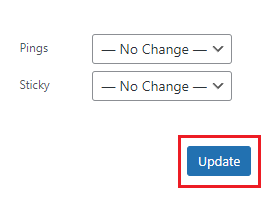
➡️ Step 4: A panel with options will open. From the ‘Comments’ dropdown, select the ‘Do not allow’ option.
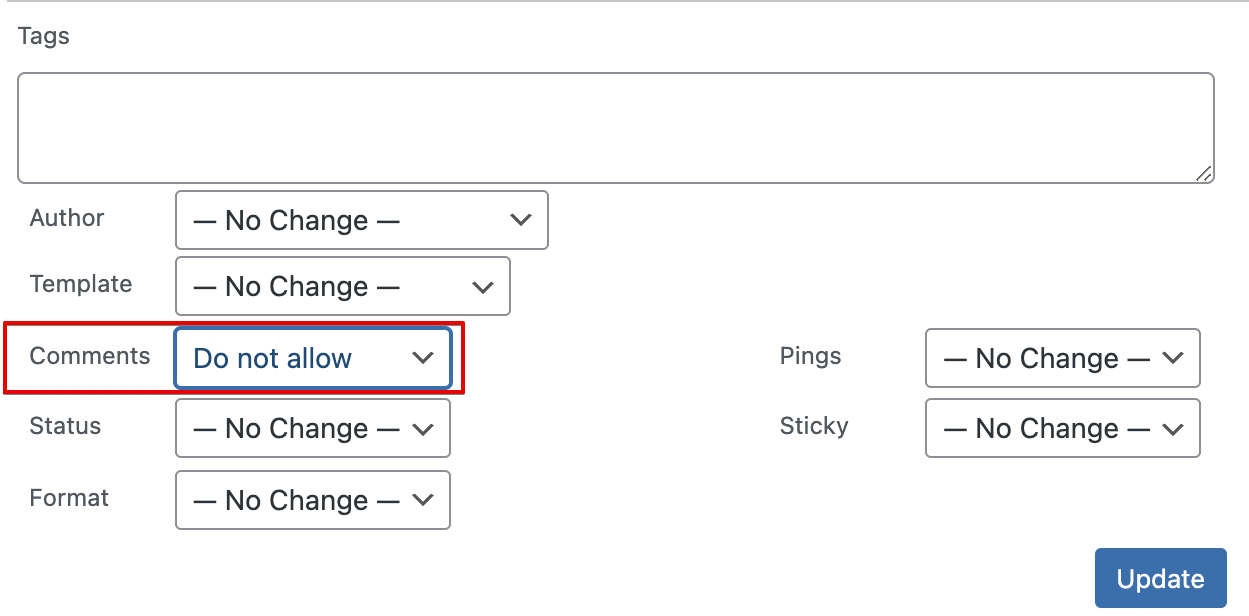
➡️ Step 5: Click on the ‘Update’ button.
How To Disable Comments in WordPress With a Plugin
A plugin can make the above task a lot easier and faster especially if you are new to WordPress. The plugin that we recommend is called ‘Disable Comments’.
The plugin allows you to allow or disallow comments from any post type in WordPress. You can also use XML-RPC and REST-API.
The plugin supports WordPress Multisite, which means you can also use it for a network of websites.
The steps to use this plugin are as follows:
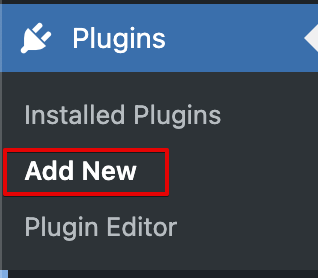
➡️ Step 1: Go to ‘Plugins > Add New’ in your WordPress admin dashboard.
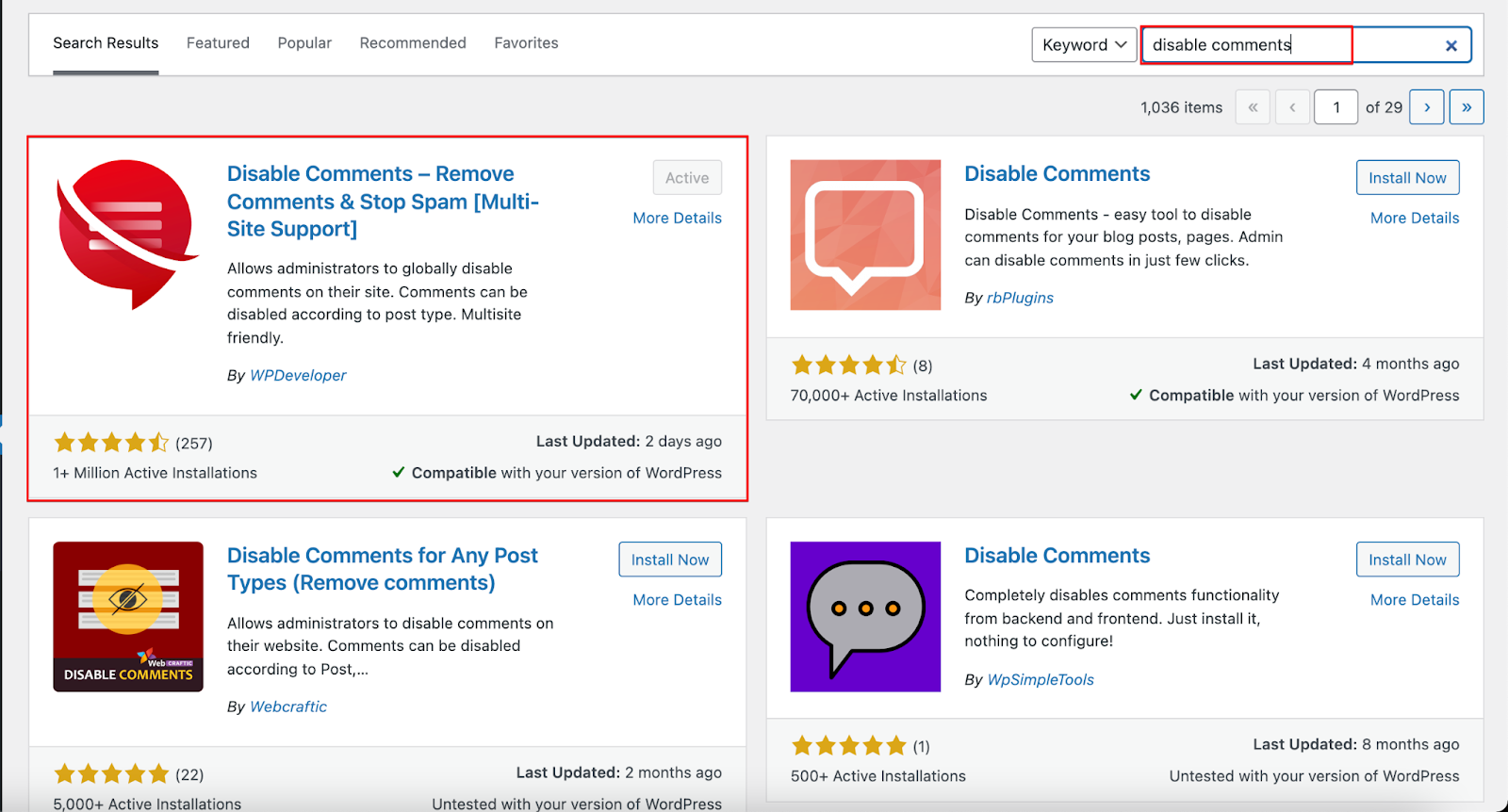
➡️ Step 2: Search for ‘Disable Comments’ in the search box and install the top result. Activate the plugin.
➡️ Step 3: Go to ‘Settings > Disable Comments’ in your dashboard. Here you’ll see the plugin settings.
The default settings available are disabling comments on all posts, disabling them on specific post types, disabling avatar, and disabling comments with API.
There are also separate settings to delete comments, but we won’t be looking at that today.
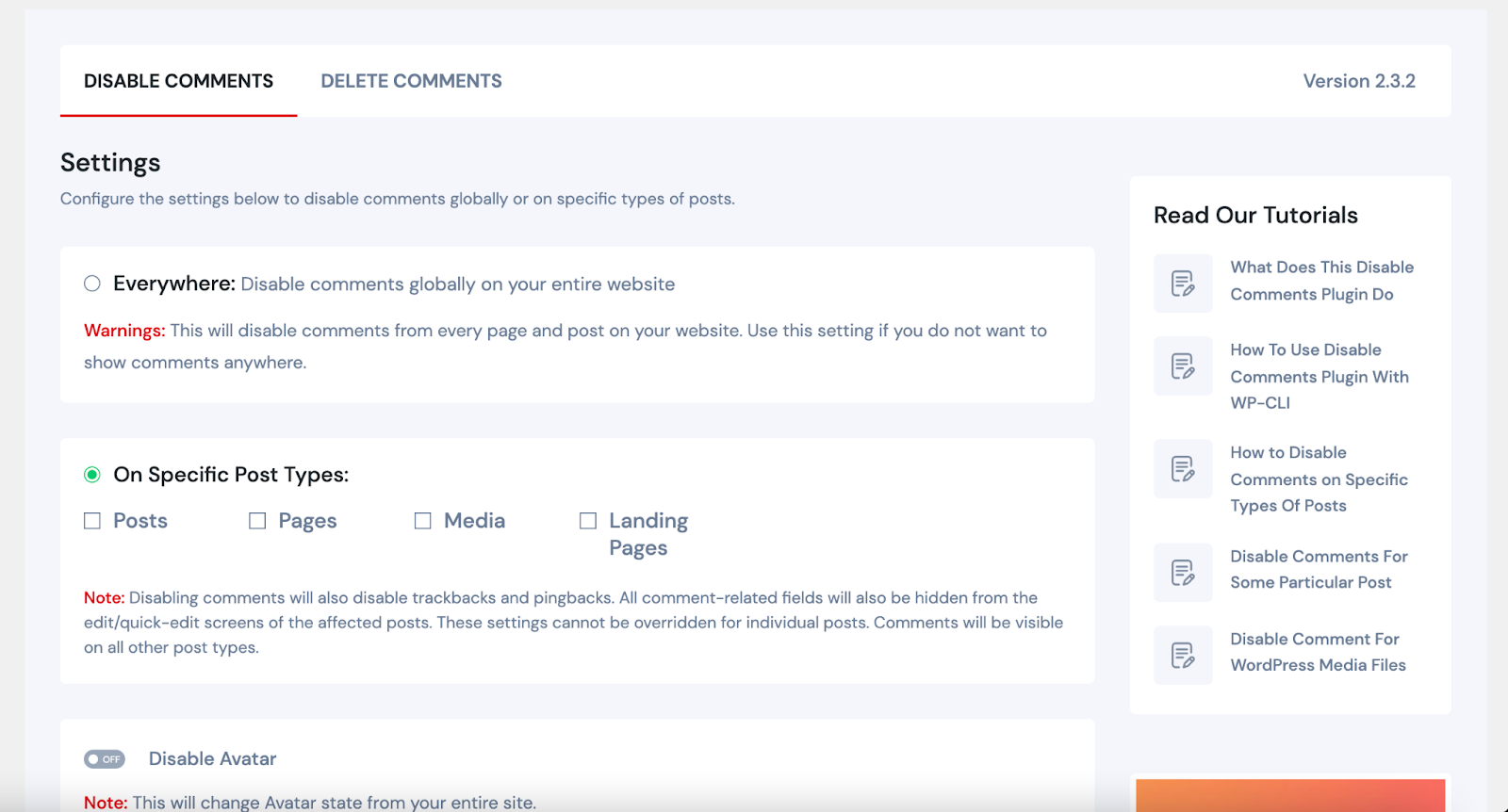
➡️ Step 4: Select the ‘Everywhere’ or ‘Specific Post Types’ option according to your needs and click on ‘Save Changes’.
Conclusion
That was everything for this tutorial on how to remove “Leave a Reply” in WordPress.
Now you know how to turn off comments in WordPress from specific posts, future posts, and all posts.
While some site owners disable comments for security or simplicity, we at Siteefy prefer to hear from our readers.
Feel free to share your comments and let us know what you think! 😊
🔔 Check also:
- How to Edit WordPress Site?
- How to Add Blog Posts to Pages in WordPress (Easy Beginners Guide)
- Why Is WordPress So Hard To Use?